Overview
In this article, you’ll learn all about our layouts. We’ll show you how to freely place your elements on the canvas or choose one of our layout templates.
In video editing, a canvas is the workspace that defines your video. Layouts are predefined arrangements of elements within this canvas that help you design your content efficiently.
Choosing a Layout Template
You can either place your elements freely on the canvas or select one of our layout templates to position your video and slides.
When you apply a layout template:
-
Your video and slides are automatically arranged on the canvas.
-
Other elements such as shapes, text, and subtitles are not affected.
-
You can use a different layout in each scene.
-
As soon as you move your video or slide manually, the layout template becomes inactive, allowing you to freely position any object on the canvas.
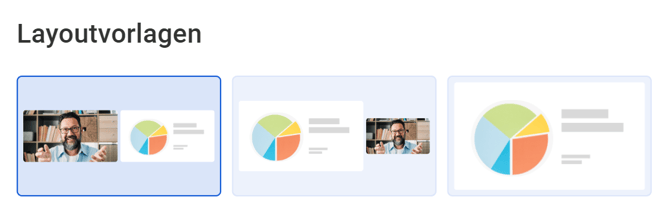
💡 If you’ve added slides, three layout templates are available to you.
Freely Placing Elements
Using drag and drop, you can freely move your elements on the canvas — giving you full flexibility and creative freedom to design a custom layout.
To adjust an element:
-
Click the object on the canvas.
-
You’ll see several handles around it that you can use:
-
The four corner handles let you resize the entire object.
-
The four side handles let you stretch or shrink it along one side.
-
The rotation handle lets you rotate the object.

-
Changing the Layer Order
You can change the layer order to determine which object appears in the foreground or background of the canvas.
The order in the timeline reflects the layer order on the canvas.
-
Click an element on the canvas.
-
Click the layer icon above the element.
-
A menu will open with four options to adjust the layer order.
Note: The video is always fixed in the background of the canvas. This cannot be changed at the moment.
Frequently Asked Questions
What happened to the old layout changes?
The previous layout switching feature has been improved. Instead of rigid layout structures, you can now design your video exactly as you wish. Our new layout templates provide inspiration and can be applied with a single click. Unlike before, you no longer add a layout element to the timeline — you now select a template that automatically applies to the entire scene.
How can I use multiple layouts in one scene?
Only one layout template can be active per scene. This ensures your design stays consistent.
If you want to use multiple layouts, simply create several scenes and select a different layout for each. How scenes work
How can I place the avatar in front of the slide?
Currently, an avatar (or your video) cannot be placed in front of a slide — it always remains in the background of the canvas. However, this feature is already in development and will be available soon.
Will there be more layout templates?
Yes! At the moment, there are three layouts with slides and one layout without slides. More layout options are already planned and will be added to Omnora soon.
Can I save my own layout?
That’s not possible yet, but a feature for saving custom layouts is planned for the future.
Are all my elements affected by the layout?
No. A layout template only affects slides and videos. Other elements such as shapes, text, and subtitles are not impacted.
I accidentally moved my slide — what now?
No problem! Just click on your desired layout template again, and your slide will automatically return to its correct position.
Troubleshooting
| Problem | Solution |
| I can’t see my video anymore. | You might have selected the “Slide Fullscreen” layout. Please choose another layout template, and your video will become visible again. |
| All slides shift when I apply a layout. | A layout is automatically applied to all slides and videos within your scene. If you want to use multiple layouts, create several scenes and assign a layout to each. |
| I have multiple slides showing at the same time, but after applying a layout, I only see one. | When multiple slides are active and you apply a layout, all slides are aligned to the same position — overlapping each other. As a result, only the top slide is visible. |