Overview
In this article, we explain all sharing options for your video in Omnora. We cover Link/Email, Embed, LMS, and Video Portal in detail and show the impact on visibility, player behavior, and security.
Open sharing options
To share your video, first open the sharing panel.
-
Open your video on the Detail page.
-
Depending on your use case, click Direct access or Share in video portal in the top right.
-
Choose one of the delivery methods.
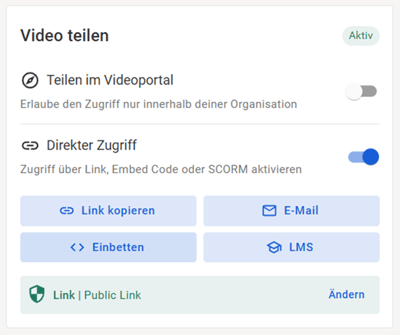
There are four ways to share a video. We will go through them one by one:
1) Direct share via link or email
Use the direct link when you want to distribute quickly without embedding.
If Direct access is enabled, the following applies:
-
The video is shared.
-
The Security profile is set to Standard and can be changed via Edit.
-
Copy link places a link to the Detail page on your clipboard.
-
Email opens a prefilled message with the link.
If Direct access is disabled
-
The video is private and not accessible.
💡 For a pure player without the detail page, later use Copy player link in the “Embed” section.
2) Embed on intranet or website
Generate HTML to insert the player or a link into your page.
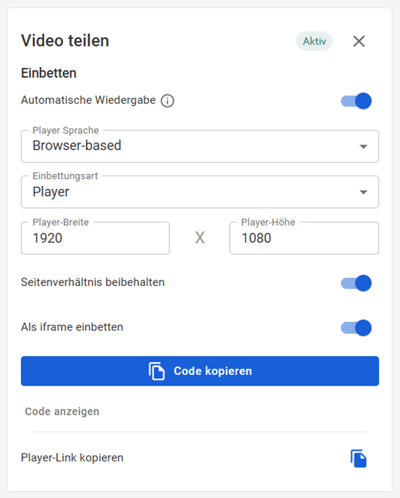
When Embed is open, you have these options:
-
Enable Autoplay if needed.
-
Note: Many browsers ignore autoplay by default.
-
-
Keep Player language set to Browser-based so the viewer’s language is used.
-
Choose an Embed type:
-
Player: Full video player on the page.
-
Button: Thumbnail; click opens the player in a new tab.
-
Text: Linked title; click opens the player in a new tab.
-
-
Copy code and paste it into your CMS.
-
Copy player link provides a URL directly to the player without the detail page.
3) LMS integration (SCORM or xAPI)
Export a streaming package for your LMS. Content stays in Omnora, the LMS plays it via streaming.
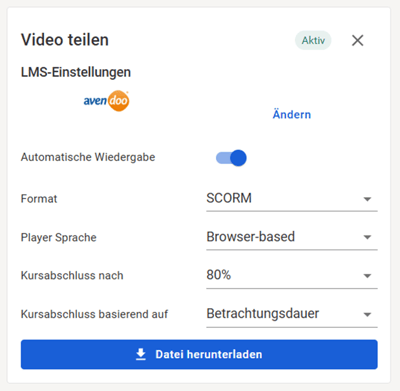
If LMS is enabled:
-
Choose Format: SCORM or xAPI.
-
Keep Player language set to Browser-based so the viewer’s language is used.
-
Optionally enable Autoplay.
-
Define Completion:
-
Time-based, e.g., 80% of video duration watched.
-
Quiz-based, e.g., 50% correct answers.
-
Important: In the quiz configuration, mark required questions as mandatory.
-
-
Download file and upload the ZIP package to your LMS.
4) Share in the video portal (if enabled)
This option is only available when the video portal is activated.
Publish your video internally in your company portal.
If Share in video portal is enabled
-
Select the audience: groups, individuals, or everyone.
-
Click Save. Changes take effect immediately.
If disabled
-
The video does not appear in the portal. Sharing is only possible via link, embed, or LMS.
Notes on security and language
Security profiles control access, e.g., Standard profile or custom profiles:
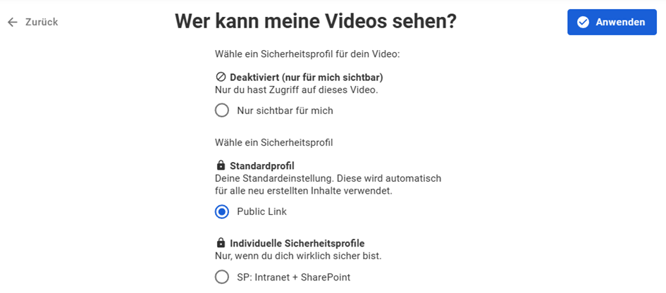
-
The Video portal uses different rules: you restrict the audience directly there.
-
Language for buttons and helper texts follows the viewer’s app language automatically.
-
For LMS/SCORM, you can set the visible language during export.
Frequently asked questions
When should I use the “player link” instead of the normal link?
When you need the player without comments or detail information, e.g., for landing pages.
Do embeds stay up to date after I make changes?
Yes. After saving, updates are delivered everywhere immediately.
Do I need the video portal to share a video?
No. Link, embed, and LMS work independently of the portal.
Can I fine-tune the audience?
Yes, via security profiles or in the video portal via audience selection.
Common issues and troubleshooting
-
Autoplay does not work
Cause: Browser blocks autoplay.
Solution: Leave autoplay optional or embed without autoplay. -
LMS completion is not reached
Cause: Quiz questions not marked as mandatory.
Solution: Mark required quiz questions as mandatory in the interaction menu. -
Link opens the detail page instead of the player
Cause: The standard link points to the detail page.
Solution: Use Copy player link or embed the player. -
Video cannot be accessed
Cause: Video is private or the security profile is too restrictive.
Solution: Enable access and review the security profile. -
Approval dialog appears before sharing
Cause: Customer-specific data protection or copyright approval.
Solution: Complete the approval, then all options are available.
Good luck sharing your videos. 🎬