Overview
In this article, you’ll learn what scenes are and how to use them effectively. We’ll explain why scenes are helpful and how they make it easier to organize and structure your video project clearly.
Each scene represents a self-contained section of content that can be edited, moved, or customized individually. This allows you to build a complex video project step by step, make targeted adjustments, and manage the entire production process more efficiently.
Add a Scene
You can easily add a new scene to your video:
-
Open your video in the editor.
-
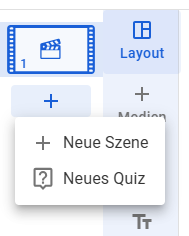
Click the blue plus icon on the left side.
-
Select “New Scene.”
-
The Media Library will open.
-
Choose a file or an existing video project.
-
The Media Library closes automatically — your new scene is added.
💡 For each scene, you can use the following elements: layout templates, media, slides, shapes, stickers, lines, text elements, and additional audio.
Change the Order of Scenes
You can easily rearrange the order of your scenes using drag and drop. Click the desired scene in the list and drag it to the position you want.
Delete a Scene
Hover your mouse over the scene in the list. A trash icon will appear — click it to delete the scene.
Frequently Asked Questions
How can I preview my entire video?
Currently, you can only preview a single scene. A full video preview of the entire project is not yet available.
How can I insert a new scene between existing ones?
Move your mouse pointer between two existing scenes. A blue plus icon will appear — click it to add a new scene in that position.
Can I place elements across multiple scenes?
No. Elements can only be placed within a single scene and cannot span across multiple scenes.
Can I split a scene?
Not yet. The option to split a scene is currently in development and will be available soon.
I accidentally deleted a scene — what can I do?
No problem! Simply use the Undo button to revert your last action.
Are subtitles created per scene?
No. Subtitles are created globally for your entire video project — not for individual scenes.
Are chapters created per scene?
No. Chapters are also created globally for your entire video project. Learn more →
Why can’t I delete my scene?
Each video project must contain at least one scene. Therefore, the last remaining scene cannot be deleted.
Will my scenes be kept if I insert another video project?
Yes. When you insert an existing video project into your current one, all scenes from the original project will automatically be imported.