



Create Learning Videos with AI Voice and Avatar
Overview
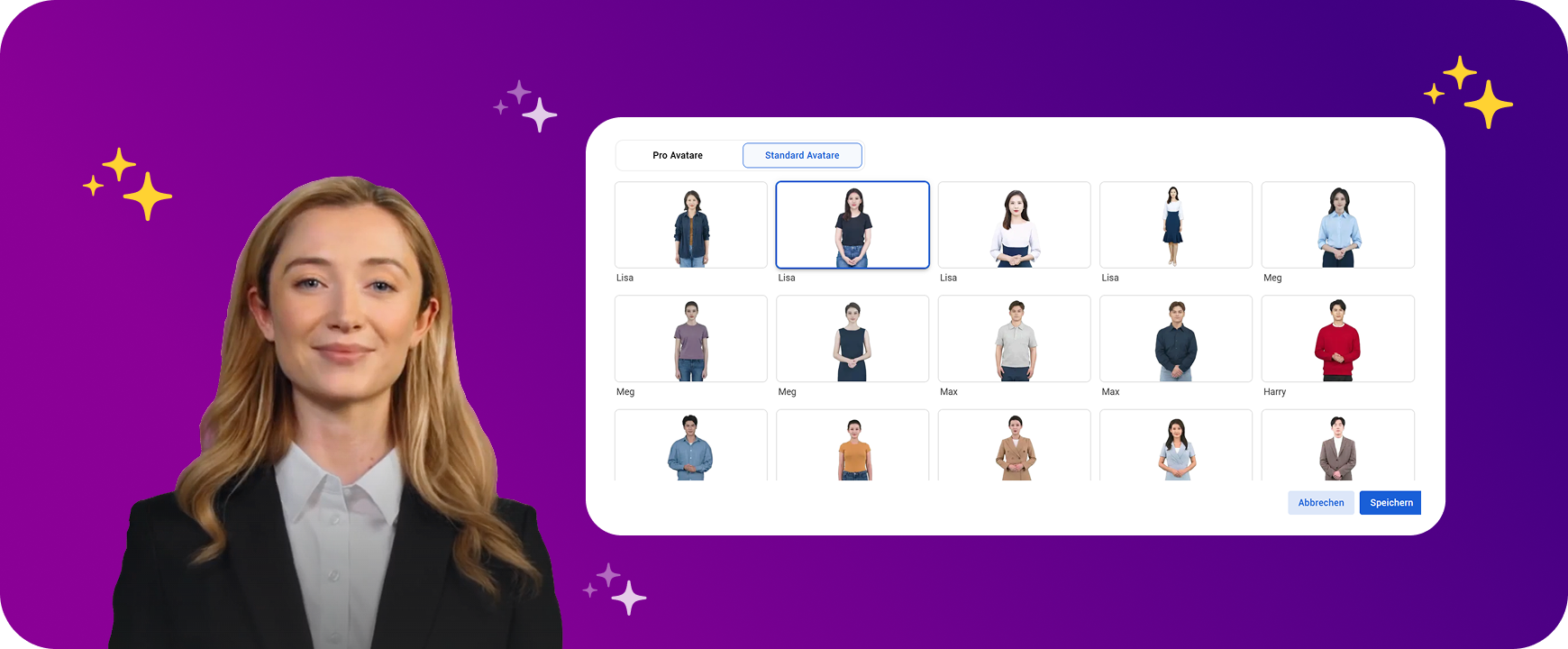
Create authentic learning videos with over 130 realistic avatars in Omnora. Achieve higher engagement with content that is more natural, human, and easier to follow – offering a professional look and secure data processing within the EU.
AI videos are created using speech synthesis (Text-To-Speech). All you need is a script, which will then be voiced by one of our 130+ avatars.
Create an AI Video – Step-by-Step
Here's how to create an AI-generated video with voice and avatar in just a few steps:
1 Open the AI Video Generator from the Create page
2 Select an avatar of your choice
3 Insert a script into the text field
4 Select an appropriate Voice and the Language out
Here's how to create an AI-generated video with voice and avatar in a few steps:
Step 1: Insert a voiceover script
Thevoiceover scriptis the foundation of your video. It will be spoken by the AI voice or avatar. To save you from typing the voiceover script yourself, we have prepared greatAI featuresfor you:
1 Import your PowerPoint notes
When you upload a PowerPoint file, you can automatically import your existing slide notes. These will be directly transferred to the text field and can be further edited there.
2 Generate text with AI
When you upload a PowerPoint file, you can automatically import your existing slide notes. These will be. Have a suitable voiceover script automatically generated with AI – based on your slide content or existing notes. This saves you time and provides a professional text suggestion in seconds.
3 Translate Text
You can translate your speaker text into another language. Use the translate button above the text field. If desired, you can also have your slides translated directly.
AI videos are created using speech synthesis (text-to-speech). All you need is a speaker text, which will be voiced by one of our +130 avatars.
Step 2: Select Avatar and Voice
In the next step, we select an avatar with a voice:
1 Avatar
Choose one of our +130 realistic avatars in Omnora.
2 Language
Select the language for the text. Make sure to choose the same language in which the text is written.
3 AI Voice
We have different voices available for each language, categorized as Pro, Multilingual, and Standard. Pro voices and Multilingual voices offer the advantage that you can additionally influence the pronunciation (see Step 4).
Our Tip:Discover our Pro voices for a natural flow of speech. Please note that these voices are not deterministic and therefore always pronounce the text slightly differently.
Step 3: Listen to Preview
After you have selected the voice and language, you can use the preview to listen to the result. Additionally, you can adjust the speed and further refine the text with pauses.
1 Preview
Click the ▶️ icon below the text field to listen to the entire text. If you only highlight a section, only that part will be played.
2 Speed
You can adjust the speech speed using the slider on the right.
3 Pauses
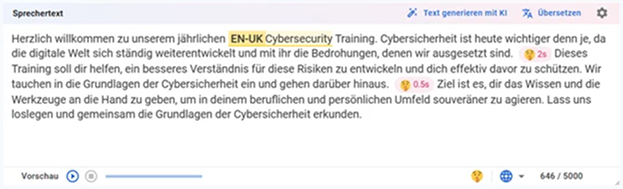
Insert specific pauses: Place the cursor at the desired position in the text. Click the 🤫 icon below the text field. Once the pause is inserted, you can define its desired length.
Step 4: Improve pronunciation
To improve pronunciation, we recommend our multilingual voices. With multilingual voices, you can ensure terms like customer success are pronounced correctly. Multilingual AI voices are marked with a 🌍 globe (e.g., Seraphina or Florian).
How to improve a word's pronunciation:
1 Choose a multilingual AI voice
2 Select the desired word in the text.
3 Click on the globe icon below the text field.
4 Select the desired language.
5 Done - your word will now be pronounced in the desired language!
Our tip:Use the preview directly below the text field to check the sound and pronunciation before generation.
Dictionary
Additionally, you can also have proper nouns, special brand names, abbreviations, etc., added to our dictionary. Simply contact us atsupport@omnora.comand let us know which word you would like to have pronounced and how.
Post-editing
You can also edit and adjust your AI video in our editor after it has been created:
1 Text and Settings: You can adjust the speaker text, speed, voice, and pauses afterwards
Learn more →
2 Avatar: You can still move the avatar in the video and change the layout.
Learn more →
3 Slides: You can replace or add to your slides in the video
Learn more →
Frequently Asked Questions
Why does the Pro voice sometimes sound different in the preview?
Pro voices work with variance. This creates more natural results but can cause slight differences in tonality and pronunciation.
Why does the preview stop after 500 characters for Pro voices?
For performance reasons, the preview for Pro voices is limited. For longer texts, create multiple previews for subsections.